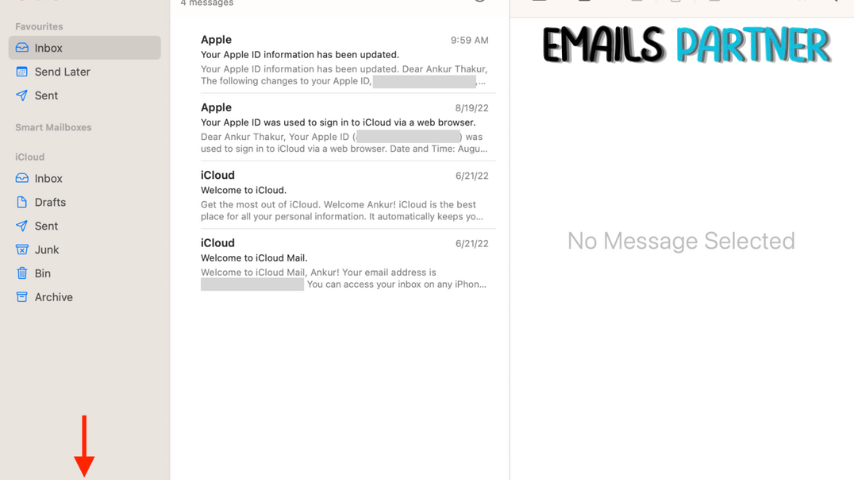
Have you ever hit send on an email, only to immediately regret it? Whether it’s a typo, a missing attachment, or an emotionally charged message, we’ve all been there. Fortunately, modern technology offers a solution. Learning How to Unsend an Email on an iPhone or Mac can be a lifesaver in these situations. This article will guide you through the process, explain the limitations, and provide tips to avoid needing this feature in the first place.
Understanding Email Recall
Before we dive into the specifics of unsending emails on Apple devices, it’s important to understand what’s happening behind the scenes:
- Immediate Recall: Most “unsend” features work by delaying the actual sending of the email for a short period.
- Server-Side Recall: Some email services attempt to recall the email from the recipient’s server.
- Time Sensitivity: The effectiveness of these methods decreases rapidly with time.
Unsending Emails on iPhone
The Mail app on iPhone offers an unsend feature, but it’s important to note its limitations:
- Time Window: You typically have 10 seconds to unsend an email after tapping “Send.”
- iOS Version: This feature is available on iOS 16 and later.
Here’s how to use it:
Step 1: Send an email as you normally would.
Step 2: Immediately after sending, look at the bottom of your screen.
Step 3: Tap “Undo Send” within the 10-second window.
Step 4: The email will return to draft mode, allowing you to edit or delete it.
Enabling the Unsend Feature on iPhone
If you don’t see the “Undo Send” option, you may need to enable it:
- Go to Settings > Mail
- Scroll down to “Undo Send Delay”
- Choose your preferred delay time (up to 30 seconds)
Unsending Emails on Mac
The process for unsending emails on Mac is similar to iPhone, but with a few differences:
- Time Window: The default is 10 seconds, but it can be customized.
- macOS Version: This feature is available on macOS Ventura and later.
Here’s how to use it:
Step 1: Send an email from the Mail app.
Step 2: Look for the “Undo” button in the lower-left corner of the Mail window.
Step 3: Click “Undo” within the set time window.
Step 4: The email will return to draft mode for editing or deletion.
Customizing the Unsend Time on Mac
To adjust the unsend time window on your Mac:
- Open the Mail app
- Go to Mail > Preferences > Composing
- Look for “Undo Send delay”
- Choose your preferred delay time (up to 30 seconds)
Limitations of the Unsend Feature
While the unsend feature can be incredibly useful, it’s important to understand its limitations:
- Short Time Window: Even with the maximum delay, you only have 30 seconds to act.
- Recipient’s Device: If the recipient’s device is offline, the email may be delivered once they connect.
- Different Email Services: The feature may not work as expected when sending to non-Apple email services.
Alternative Methods for Different Email Services
If you’re using a different email service on your iPhone or Mac, here are some alternatives:
1. Gmail
- Enable the “Undo Send” feature in settings
- Look for the “Undo” option after sending an email
- The default time window is 5 seconds, but can be extended up to 30 seconds
2. Outlook
- Use the “Recall This Message” feature (available in some versions)
- This attempts to delete the message from the recipient’s inbox
- Success depends on various factors, including recipient’s settings
3. Yahoo Mail
- Currently doesn’t offer an unsend feature
- Consider using a third-party email client with this functionality
Best Practices to Avoid Needing to Unsend
While it’s great to have an unsend option, it’s even better to avoid needing it. Here are some best practices:
- Double-check recipients: Always verify you’re sending to the correct person(s).
- Review your message: Read through your email one last time before sending.
- Pause before sending: Take a moment to consider if the email is necessary and appropriate.
- Use drafts: For important emails, save as a draft and review later with fresh eyes.
- Check attachments: Ensure all necessary files are attached before hitting send.
What to Do If You Can’t Unsend
If you’ve missed the unsend window, here are some steps you can take:
- Send a follow-up email: Apologize and provide the correct information or context.
- Call the recipient: For urgent matters, a phone call might be the best option.
- Use email recall if available: Some email clients offer this feature, though it’s not always effective.
- Learn from the experience: Use it as a reminder to be more careful in the future.
Advanced Tips for Email Management
To further improve your email habits and reduce the need for unsending:
- Use email scheduling: Compose emails in advance and schedule them to send at appropriate times.
- Create email templates: For frequently sent messages, use templates to reduce errors.
- Implement a two-minute rule: If an email will take less than two minutes to write, do it immediately.
- Use the “BCC” field wisely: When sending to multiple recipients who don’t need to see each other’s addresses.
- Enable read receipts for important emails: This can help you track if an email has been opened.
Ethical Considerations of Unsending Emails
While the ability to unsend emails can be beneficial, it’s important to consider the ethical implications:
- Transparency: Unsending could be seen as attempting to hide information.
- Responsibility: It shouldn’t be used as a crutch for careless email practices.
- Professional etiquette: In some contexts, frequently unsending emails might be viewed negatively.
The Psychology of Email Communication
Understanding the psychological aspects of email communication can help reduce the need for unsending:
- Emotional state: Avoid sending emails when you’re angry or upset.
- Timing: Consider the recipient’s schedule and time zone before sending.
- Tone: Remember that tone can be easily misinterpreted in written communication.
- Urgency: Not every email requires an immediate response – set realistic expectations.
The Future of Email Recall Technology
As technology evolves, we can expect improvements in email recall capabilities:
- Longer recall windows: Future updates may extend the time available to unsend.
- Cross-platform functionality: Improved recall across different email services and devices.
- AI-assisted review: Intelligent systems might flag potentially problematic emails before sending.
- Enhanced privacy features: More control over how long sent emails remain accessible.
Legal Implications of Unsending Emails
In certain situations, the ability to unsend emails can have legal ramifications:
- Business communications: Unsending could be seen as tampering with records in some contexts.
- Legal proceedings: The act of unsending might need to be disclosed in legal situations.
- Privacy laws: As email recall technology advances, it may intersect with data privacy regulations.
Educating Your Team on Email Best Practices
If you’re in a leadership position, consider implementing email training for your team:
- Create guidelines: Develop a company policy on email etiquette and the use of unsend features.
- Regular training: Conduct sessions on effective email communication and tools.
- Lead by example: Demonstrate good email practices in your own communications.
Conclusion
The ability to unsend emails on iPhone and Mac is a valuable tool in our digital communication toolkit. However, it’s not a perfect solution and comes with limitations. By understanding how to use this feature effectively, implementing best practices, and being mindful of the broader implications of our email habits, we can communicate more effectively and with fewer regrets.