


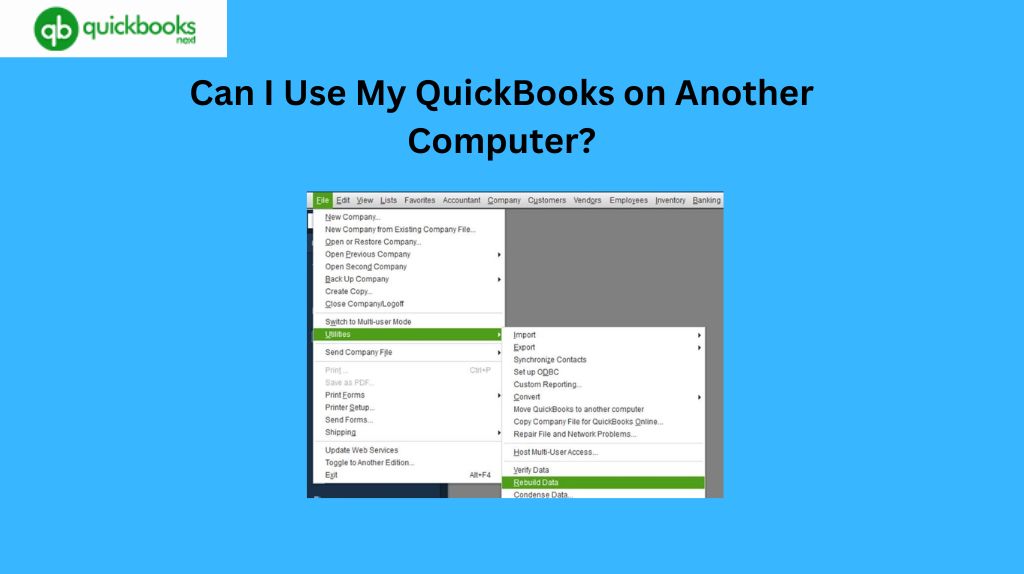
Are you looking to use your QuickBooks software on another computer? Maybe you want to access your accounts and financial data from a different location or share your bookkeeping responsibilities with a colleague. Well, the good news is, you can definitely use QuickBooks on multiple computers.
Whether you are using the desktop version of QuickBooks or the online version, we’ve got you covered with all the information you need.
From installing QuickBooks on a new computer to transferring your company file and ensuring data consistency, we will walk you through the process, step by step. We will also touch on any additional software or hardware requirements that may be necessary for a smooth experience.
Understanding the Limitations of QuickBooks Licensing
QuickBooks, like many software solutions, is governed by licensing agreements that outline how and where the software can be used. Before planning to install QuickBooks on another machine, it’s crucial to understand these limitations to avoid any legal or operational issues.
For the desktop version, Intuit typically allows a single-user license to be installed on up to two computers, provided they are used by the same user. This means if you’re planning to use QuickBooks on a second computer at home or in a different office location, you’re likely within the bounds of the agreement.
However, accessing the software simultaneously on both machines might require a multi-user license.
Transferring QuickBooks Data to another Computer
Transferring QuickBooks data between computers is a straightforward process but requires careful attention to detail to ensure no data is lost or corrupted.
The first step is creating a backup of your company file on the original computer. QuickBooks offers an integrated backup feature that makes this easy.
Once the backup is complete, you can move the file to the new computer using a secure method, such as a USB drive or a secure cloud-based service. After transferring, install QuickBooks on the new computer and use the Restore feature to upload your company file.
Always ensure that the QuickBooks version installed on the new computer is the same or more recent than the version on the original computer to prevent compatibility issues. If an update is needed, do so before restoring the company file.
Using QuickBooks Online for Multi-Computer Access
For businesses or individuals requiring frequent access from multiple computers, QuickBooks Online presents a convenient solution. Unlike the desktop version, QuickBooks Online is cloud-based, meaning it can be accessed from any device with an internet connection, without the need for software installation.
QuickBooks Online offers several plans, each providing different features and user access levels.
Choosing QuickBooks Online for multi-computer access simplifies collaboration among team members, allowing for real-time updates and visibility. It’s an excellent option for dynamic businesses looking for flexibility and efficiency.
Setting Up QuickBooks in a Network Environment
For businesses with multiple users needing access to QuickBooks on different computers within the same office, setting up QuickBooks on a network can be a viable solution.
This setup requires a central computer or server where the QuickBooks Database Server Manager is installed, allowing other computers on the network to access the company files.
The installation and setup process for a networked environment can be complex and might require the assistance of an IT professional or a QuickBooks expert. Proper configuration ensures that all users can access the files they need while maintaining data security and integrity.
It’s also essential to regularly update the QuickBooks Database Server Manager and perform routine backups to prevent data loss and ensure smooth operation.
Sharing QuickBooks Files Using a Cloud-Based Solution
Another method for using QuickBooks on multiple computers is leveraging cloud-based solutions like Dropbox, Google Drive, or QuickBooks Hosting Services. These services store your QuickBooks files in the cloud, allowing you to access them from any computer with internet access.
However, when using these services, especially for the QuickBooks desktop version, it’s crucial to ensure that only one user accesses the company file at a time to prevent data corruption. Synchronizing files after each use is also necessary to ensure all changes are updated across all devices.
Cloud-based solutions offer a balance between the traditional desktop software’s power and the flexibility of online access, making them an attractive option for many users.
Surely here’s a short answer on how to transfer QuickBooks data to a new computer:
- To transfer QuickBooks data to a new computer:
- Backup your company file on the old computer.
- Install QuickBooks on the new computer.
- Transfer the backup file to the new computer.
- Open QuickBooks on the new computer and restore the backup.
- Verify all data has transferred correctly.
- This process ensures your financial records are safely moved to your new system.
Best Practices for Using QuickBooks on Multiple Computers
To ensure a seamless experience and maintain data integrity when using QuickBooks on multiple computers, follow these best practices: always back up your data regularly, use strong, unique passwords for each user, and keep your QuickBooks software up to date on all devices.
Additionally, consider the needs of your business and whether a cloud-based or networked solution is more practical. Each has its advantages and limitations, so choose the one that best aligns with your operational requirements and workflows.
Training all users on proper QuickBooks procedures and data handling will also minimize the risk of errors and data corruption, ensuring your financial information remains accurate and secure.
Troubleshooting Common Issues When Using QuickBooks on Multiple Computers
Despite careful planning and setup, you may encounter issues when using QuickBooks on multiple computers. Common problems include difficulty in accessing company files across devices, slow performance over a network, and data synchronization errors.
To troubleshoot these issues, start by checking your network connection and ensuring all computers meet QuickBooks’ system requirements. Additionally, verify that the QuickBooks Database Server Manager is correctly installed and running on your network’s host computer.
Alternatives to Using QuickBooks on Multiple Computers
If using QuickBooks on multiple computers does not suit your needs or proves too complex, several alternatives may provide the functionality you require.
21Cloud-based accounting software like Xerox or Fresh Books offers multi-device access and collaboration without the need for local software installation.
These alternatives often come with a subscription model, which might be more cost-effective depending on your business size and needs. They also provide automatic updates and backups, reducing the administrative burden on your team.
Conclusion and Final Thoughts
Expanding QuickBooks access to multiple computers can significantly enhance your business’s operational flexibility and efficiency. Whether through the desktop version, QuickBooks Online, or a networked solution, multiple paths exist to achieve this goal.
Understanding the limitations and requirements of each option is key to a successful setup. By following best practices and being prepared to troubleshoot common issues, you can ensure a smooth experience for all users.


