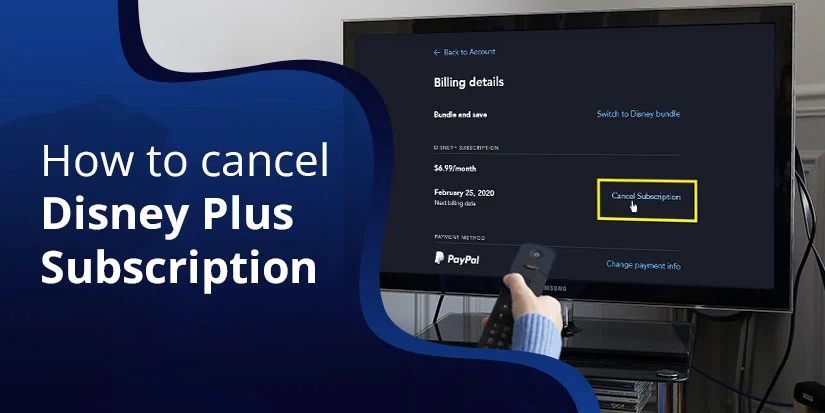
If you don’t have enough time to watch your favorite shows, movies, or series on Disney Plus, you can easily cancel it with ease. But without knowing how to cancel Disney Plus subscription, you may have to pay the subscription fee monthly or regularly. If you are facing any difficulties while doing the cancellation process, you can read this quick guide.
How to Cancel Disney Plus Subscription?
If you’re billed directly by Disney+, you can cancel your subscription by following the steps below:
- Enter your credentials of Disney+ through a computer or mobile browser.
- Navigate to your profile.
- Pick Account.
- Choose your Disney+ subscription under Subscription.
- Select Cancel Subscription.
You’ll continue to have access to Disney+ until the end of your current billing period, but you will not be charged moving forward. We do not offer refunds or credits for partially used billing periods.
Third-party billed subscription
If you have purchased the subscription from a third-party source, you should visit the particular site. After that, you can cancel the Disney+ subscription.
How Do I Cancel My Bundle Plan With an Existing Subscription?
If you had an existing Hulu, ESPN+, or Max subscription before you upgraded to a bundle plan, there are some additional complexities to be aware of when canceling your bundle plan.
When you cancel your original subscription, your subscription to your Disney+, Hulu, and ESPN+ bundle will continue uninterrupted, and you’ll continue to have access to Disney+, Hulu, and ESPN+ through that bundle plan. If you had been receiving a credit towards the monthly price of your Disney+, Hulu, and ESPN+ Bundle plan for ESPN+, the credit will end when you cancel your original subscription.
If you signed up for a Disney+, Hulu, and Max bundle plan through Max, manage your plan directly through Max or contact Max support for further guidance.
Can I Pause My Disney+ Subscription?
If you are not willing to pay the subscription fee or want to hold for a while, you can easily pause the membership plan. Read these instructions to know.
- Sign in to your Disney Plus account.
- Access your profile.
- Then, tap on Account.
- Select your Disney+ subscription under Subscription.
- Pick Pause Subscription.
- Choose the duration of the pause.
- Select Pause Subscription.
The pause will take effect on the first day of your next billing period, and you can continue streaming until then. Once the pause begins, you will not be charged, and you will not have access to any content until the pause ends. If you have a bundle subscription, remember that pausing Disney+ will also pause the other streaming services that are part of your bundle plan.
If you have an extra member on your subscription, that profile will be paused as well. While the Extra Member won’t receive a direct email notification, they will see a message when trying to stream content and can view the pause status in their account settings.
You should keep one thing in your mind: if you have a Disney+, Hulu, or Max Bundle subscription, the pause feature is not available at this time.
Wrap Up!
Here, we are summing up our quick guide on how to cancel Disney Plus subscription. If you want more details about the cancellation process, you can check our comprehensive guide with the help of the above link.